 English
 Русский
Objective
Sign in from your Linux computer to a server running Windows via the Remote Desktop Protocol (RDP) in order to manage it remotely, install software, configure the system, and perform tasks just like on a regular computer.
Environment
To establish a successful connection, you will need:
-
A computer running Linux.
-
The Remmina application installed (can be installed by following the instructions on the official Remmina website).
You may use another similar RDP client for Linux instead of Remmina.
Prerequisites
Before you begin, make sure that:
-
Your computer has an active internet connection.
-
You know the IP address or hostname of your Windows server (provided by your hosting provider).
-
You know the username (usually Administrator) and password for the server (provided by your hosting provider).
-
Remote Desktop access is enabled on the Windows server (typically configured by default when the service is provisioned).
Procedure
-
Launch Remmina on your Linux computer.
-
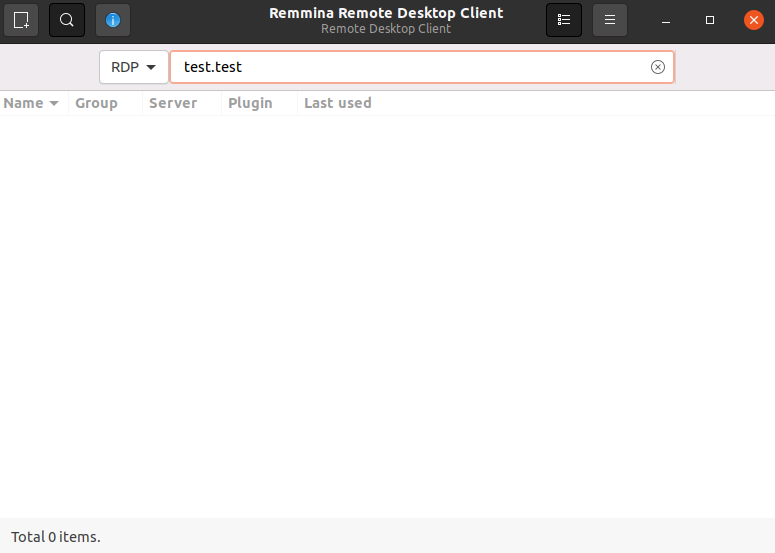
In the main window, select RDP as the protocol, enter the IP address or hostname of your Windows server in the connection field, and press Enter on the keyboard:
-
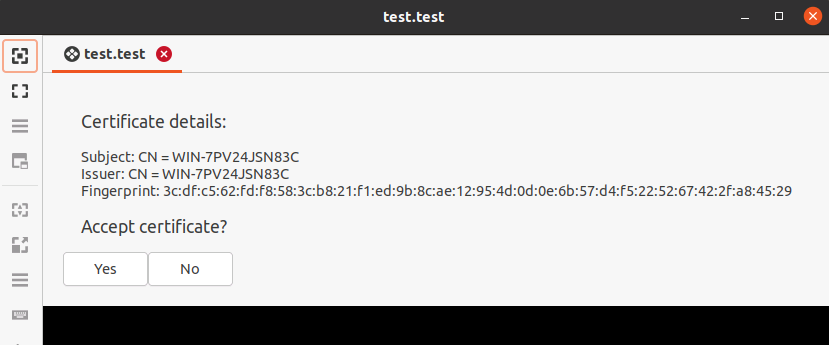
In the certificate information dialog, click Yes to accept the certificate:
-
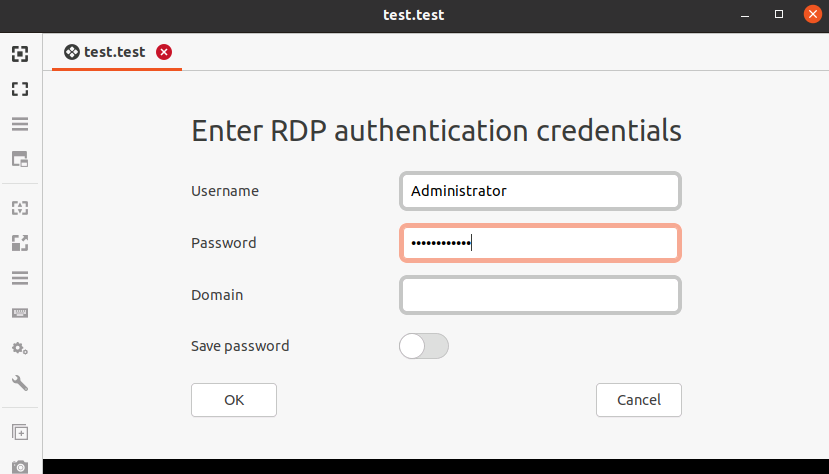
In the next dialog, enter the username and password for your Windows server. Optionally, enable Save password, then click OK:
-
Wait for the remote desktop session to establish. This usually takes a few seconds.
Done!
Once the connection is established, you will see the desktop of your remote Windows server. It looks almost the same as the desktop of any other Windows computer, and you can work with it just like on a local machine.