 English
 Русский
Objective
Sign in from your Windows computer to a server running Windows via the Remote Desktop Protocol (RDP) in order to manage it remotely, install software, configure the system, and perform tasks just like on a local computer.
Environment
To complete this procedure, you will need:
-
Any computer running Windows.
-
The Remote Desktop Connection application (installed by default in Windows).
Prerequisites
Before you begin, make sure that:
-
Your computer has an active internet connection.
-
You know the IP address or hostname of your Windows server (provided by your hosting provider).
-
You know the username (usually Administrator) and password for the server (provided by your hosting provider).
-
Remote Desktop access is enabled on the Windows server (usually configured automatically when ordering the service).
Procedure
- Press Win + R on your keyboard to open the Run dialog.
- Type mstsc and click OK:
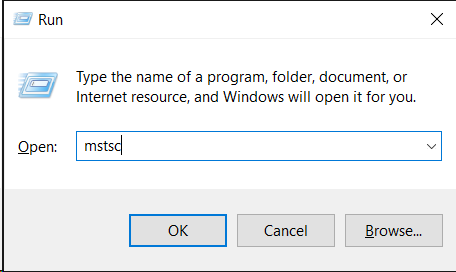
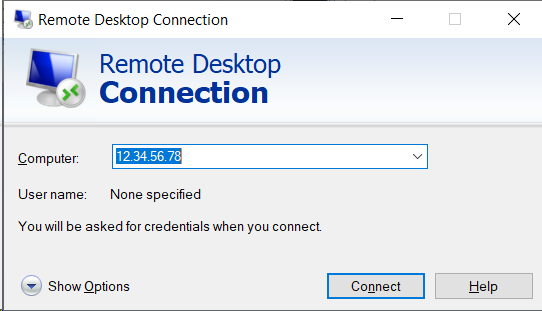
- In the Remote Desktop Connection window, enter the IP address or hostname of your Windows server and click Connect:
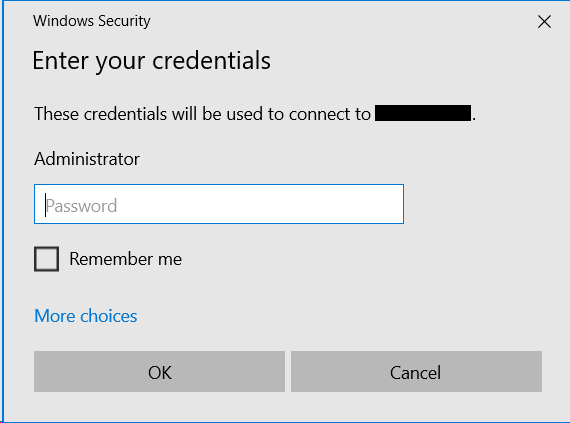
- When prompted, enter the username and password for the server:
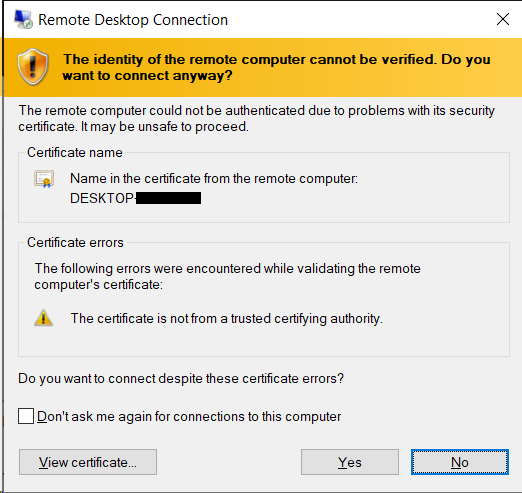
- If a security warning about the certificate appears, click Yes to continue:
- Wait for the connection to complete. This usually takes a few seconds.
Additional Information
The security certificate warning appears because the certificate was automatically generated by the server and is not signed by a trusted Certificate Authority. This is normal for new servers and can be safely ignored.
You can enable "Don’t ask me again" for connections to this computer to prevent this warning from appearing in the future.
Done!
Once connected, you will see the desktop of your remote Windows server, which looks almost the same as a regular Windows desktop. You can now work with it as if you were using a local computer.