 English
 Русский
Objective
Connect to a Linux server using an SSH key and the standard Windows OpenSSH client in order to manage the server from the command line and install any required software.
Environment
To complete this procedure, you will need a computer running Windows 10 or later.
Prerequisites
Before you begin, make sure that:
-
Your computer has an active internet connection.
-
You know the IP address or domain name of your server (provided by your hosting provider).
-
The OpenSSH Client feature is installed on your system. You can verify this in Settings → Apps → Optional features.
-
You have already created an SSH public key and uploaded it to your Linux server (see the article How to Create an SSH Key Using the Windows OpenSSH Client and Upload It to a Linux Server).
-
The private SSH key used for access is stored on your Windows computer (by default in C:\Users\<YourUsername>\.ssh\id_rsa, unless you chose a different path when generating the key).
Procedure
- Open PowerShell on your Windows computer.
- Run the following command:
ssh -i "C:\Path\to\key\id_rsa" username@ХХ.ХХ.ХХ.ХХ
Where:
• C:\Path\to\key\id_rsa — the full path to your private SSH key file (for example, C:\Users\Administrator\.ssh\id_rsa);
• username — the username on the server (for example, root);
• XX.XX.XX.XX — the IP address or domain name of your server (for example, 12.34.56.78)
then Press Enter:
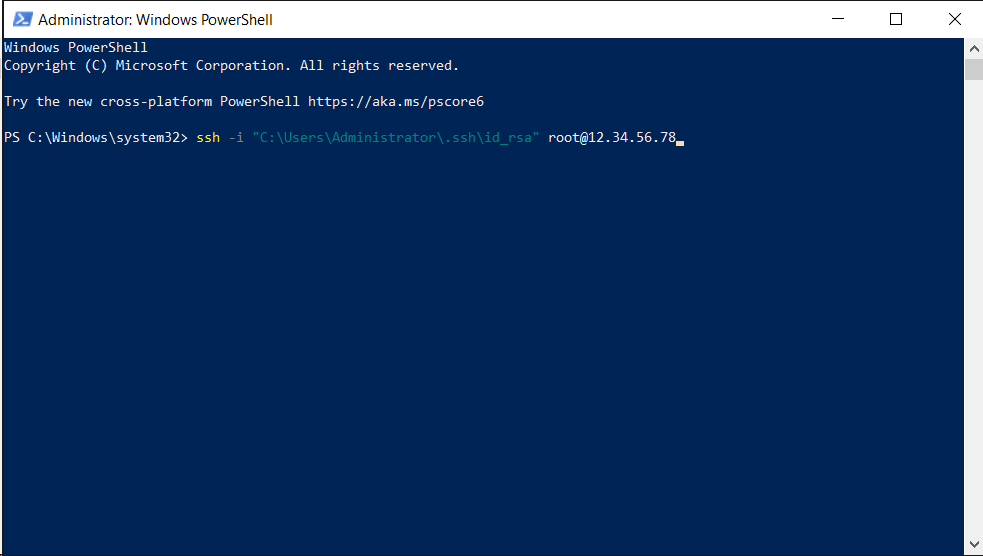
- If prompted, enter your passphrase (only if you set one when creating the SSH key) and press Enter.
- Wait for the connection to complete. This may take a few seconds.
Done!
After a successful connection, you will be logged in to the server and can begin managing it.