 English
 Русский
Objective
Generate an SSH key using PuTTYgen and upload it to your Linux server in order to connect securely without using a password.
Environment
To complete this procedure, you will need:
-
A computer running Windows.
-
A mouse connected to the computer.
Prerequisites
Before you begin, make sure that:
-
PuTTY and its component PuTTYgen are installed on your computer.
-
If they are not installed, download them from the developer’s website and install them.
-
Your computer has an active internet connection.
-
You have the connection details for your Linux server (IP address, username, and password) provided by your hosting provider.
Procedure
Step 1. Generate an SSH Key
- Launch PuTTYgen on your computer.
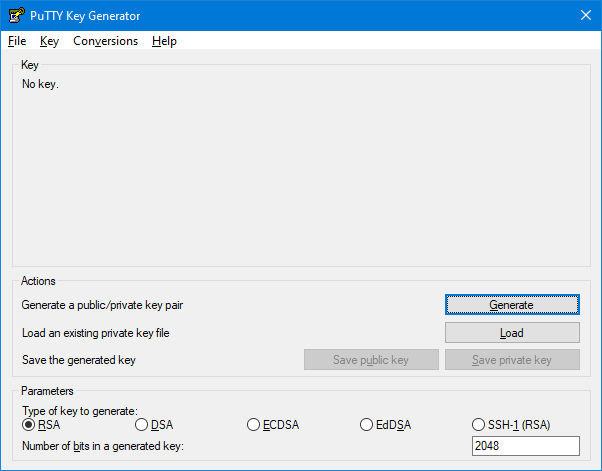
- In the PuTTYgen window, set the following options:
• Type of key to generate: RSA;
• Number of bits in a generated key: 2048 or 4096:
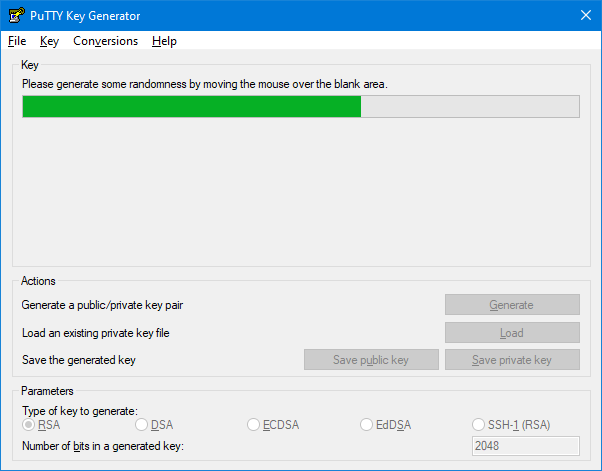
- Click the Generate button then move your mouse randomly inside the blank area of the window until the key generation process is complete:
- (Optional but recommended) Enter a value in the Key passphrase field to add an extra layer of protection:
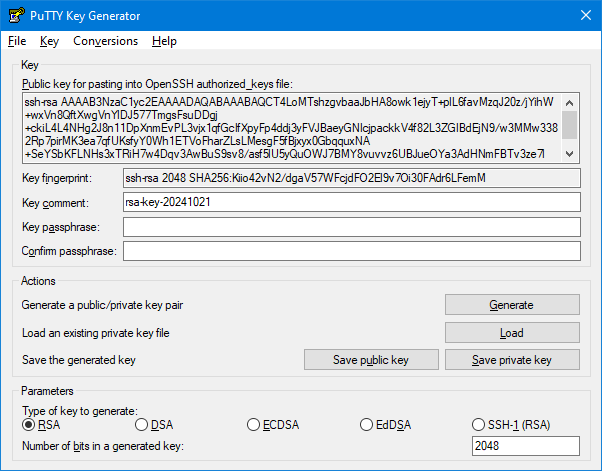
- Click Save private key and save the file to a secure location on your computer.
Important:
The private key allows anyone who has it to connect to your server and perform any actions. Never share your private key with other users.
Step 2. Add the Public Key to the Linux Server
- Connect to your Linux server via SSH using your username and password (see the article How to Log In to a Linux Server Using a Username and Password).
- Create the directory for SSH keys by running:
mkdir -p ~/.ssh - Open the authorized_keys file for editing:
nano ~/.ssh/authorized_keys - In PuTTYgen, copy the Public key for pasting into OpenSSH authorized_keys file.
- Use Shift + Insert to paste the public key into the authorized_keys file.
- Press Ctrl + O to save the file, then press Enter, and press Ctrl + X to exit the editor.
Done!
SSH key-based authentication is now configured. You can now connect to your Linux server using your private key instead of the password provided by your hosting provider.