 English
 Русский
Objective
Enable the audio service on a Windows server and make it possible to hear all sound events from the server on your local computer when connected via Remote Desktop.
Environment
To complete the setup, you will need:
-
Any computer running Windows
-
The Remote Desktop Connection application (installed by default on Windows)
Prerequisites
Before you begin, make sure your computer has an active internet connection.
Step 1. Configure Audio on the Windows Server
- Connect to your Windows server via Remote Desktop (see the article How to Connect to a Windows Server Remote Desktop from Another Windows Computer).
- On the remote Windows Server, press Win + R on your keyboard to open the Run dialog.
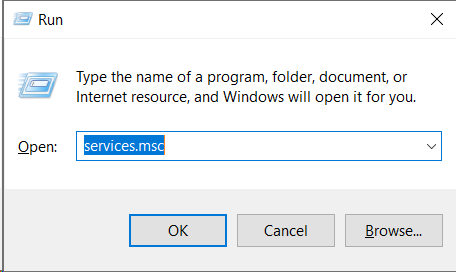
- Enter the command services.msc and click OK:
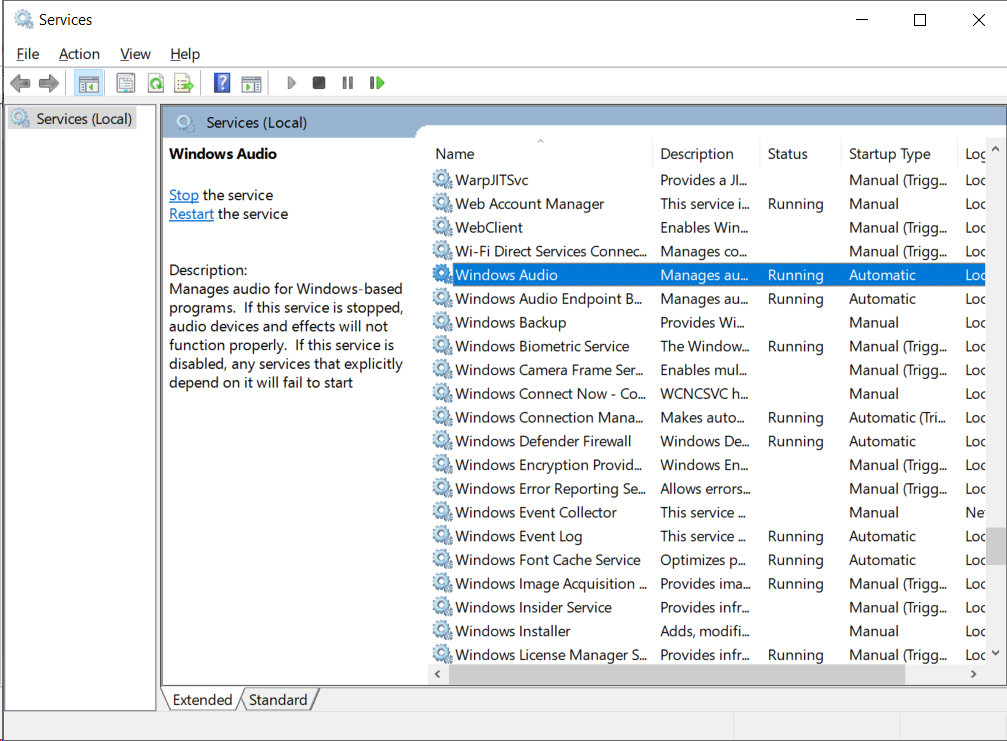
- In the Services window, find Windows Audio and double-click it to open its properties:
- In the properties window:
• Click Start to launch the service;
• Set Startup type to Automatic so the service starts every time the server boots:
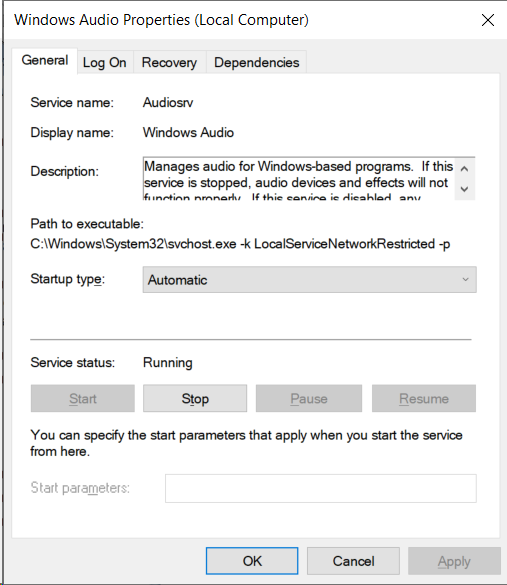
Click OK to save the changes and close the Services window. - Disconnect from the remote desktop session to complete this step and proceed with the configuration on your local computer.
Step 2. Configure the Remote Desktop Connection on Your PC
-
Press Win + R on your computer to open the Run dialog.
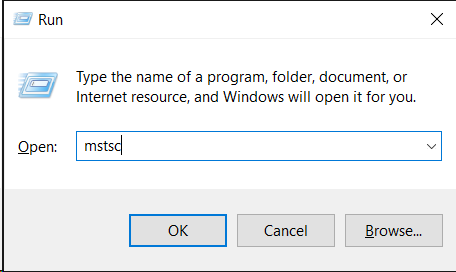
- Enter the command mstsc and click OK:
- In the Remote Desktop Connection window, click Show Options:
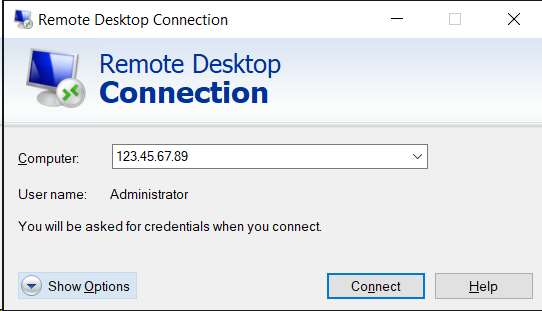
- Open the Local Resources tab to access device and audio settings:
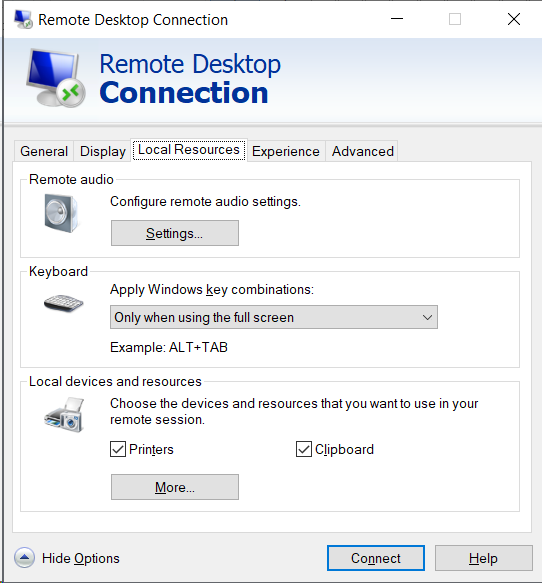
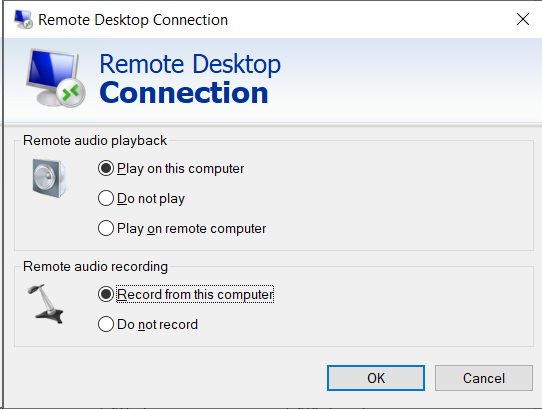
- In the Remote audio section, click Settings, then configure the following options:
• Under Remote audio playback, select Play on this computer to redirect all sound from the Windows server to your local machine;
• Under Remote audio recording, select Record from this computer if you want to use your local microphone on the Windows server:
- Click OK to apply the settings.
Done!
Now, when you connect to your Windows server via Remote Desktop, you will hear all audio played on the server (music, system sounds, application audio, and more).
Additionally, if you enabled Record from this computer, you will be able to use your local microphone in applications running on the Windows server, for example for voice chats or conferencing software.